Request Detail
Request detail represents the main working form where you process a specific task from start to completion. This is where you enter, review, and update the data that defines the request and determines how it moves through the process.
The form content always depends on the object type and the specific process the request belongs to. As a result, each request detail can look different. It includes only the fields and sections that make sense for the given area of work, such as identification data, amounts, line items, due dates, or other specific information. Rather than using a generic template, the system provides a focused workspace designed around real process requirements.
The request detail also adapts dynamically to the current workflow state and the user’s role. As the request progresses, both the form content and the available actions can change. Some fields may become required, others read-only, or they may not appear at all. This approach helps you focus only on what matters in the current step and guides you through the process without unnecessary distractions.
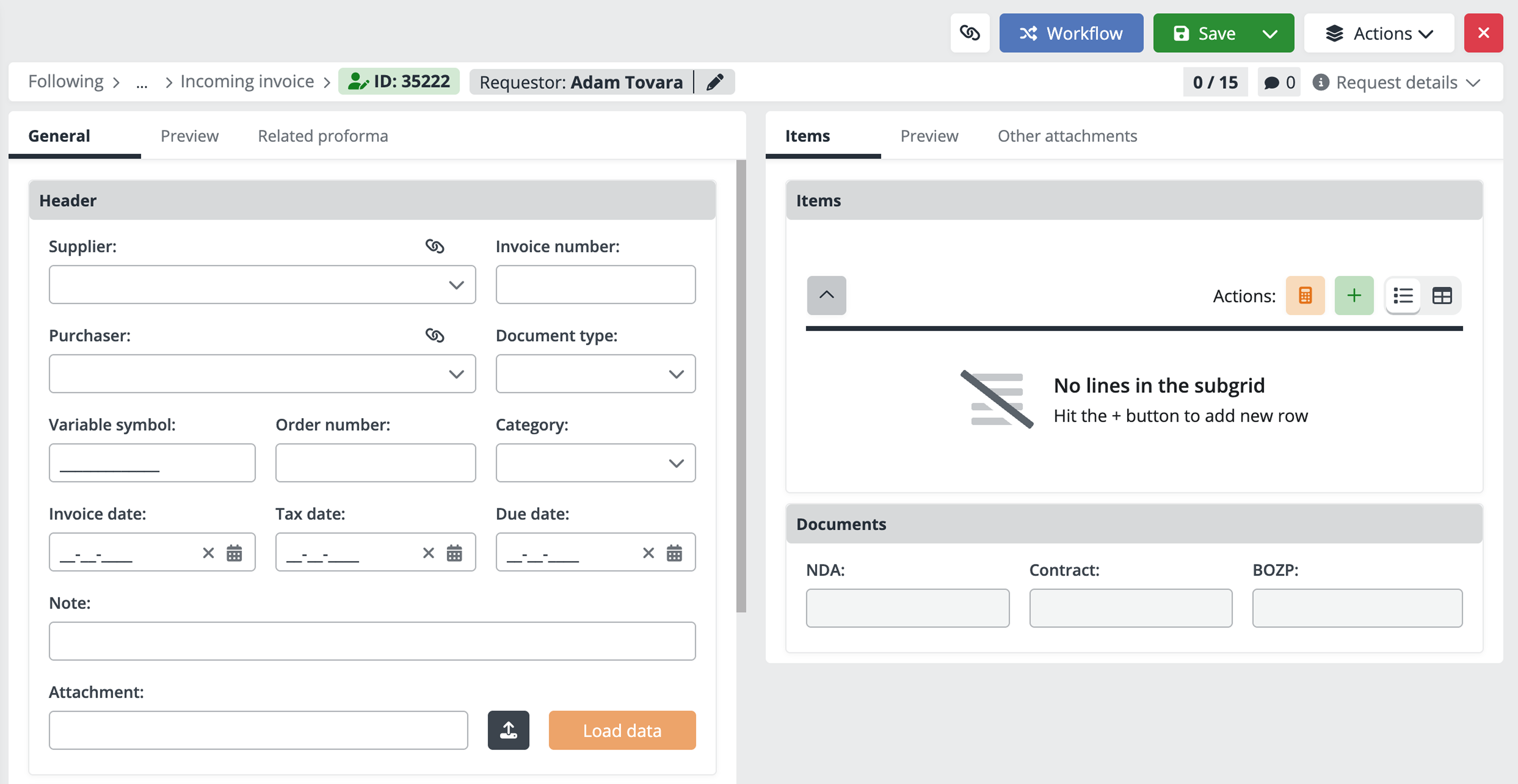
Orientation within the request
Breadcrumb navigation
On the left side, the breadcrumb navigation shows the path to the current request. It helps you understand where the request sits within the system structure and lets you return to higher levels without manually navigating back through request lists.

Request ID
Next to the breadcrumb navigation, Xeelo displays a unique request ID. You can use this ID to clearly identify the request when communicating with colleagues, referencing it in comments, or contacting support. Each update of a completed request creates a new request version with a new ID. Xeelo keeps the original ID and makes it available in the request history. This approach preserves a complete audit trail and lets you track how the request evolved.

Role and status
Next to the request ID, Xeelo shows the current role and status of the request. These values immediately tell you: which workflow phase the request is in, who is currently responsible for the request, whether the request remains in progress or is already completed.

Changing priority
Next to the role and status, the pencil icon lets you change the request priority. You can select one of the available options: high, medium, low, or undefined. When you change the priority, Xeelo updates the label color immediately. This visual cue helps you scan request lists faster and organize work more effectively across the team.

Request actions
At the top of the request detail, Xeelo displays a set of actions that let you manage the request. You use these actions to save changes, move the request through the workflow, share it with others, or perform other operations related to the entire request. Xeelo determines which actions are available based on:
- whether the request is currently assigned to you,
- your role and permissions,
- the current workflow state.
As a result, Xeelo shows only the actions you can actually use at that moment.
Request link
This button lets you quickly copy a direct link to the currently opened request. After clicking it, Xeelo stores the link in your clipboard so you can paste it into an email, chat, or comment. The link always points directly to the specific request and respects access permissions. Only users who have access to the request can open it. This action works especially well when you collaborate with colleagues or need to quickly share a specific record.

Workflow
The Workflow action controls the request lifecycle. You use it to decide what happens next—for example, whether the request moves to another processing step, gets approved, returns for completion, or closes. When you click Workflow, Xeelo displays a list of available workflow actions. Xeelo automatically adjusts this list based on the current request state, your role, and the administrator-defined workflow configuration. Xeelo prevents you from selecting actions that do not apply to the current state. This behavior ensures consistent processing and helps the request follow the correct workflow path.

Save / Save & close
The Save and Save & Close buttons save the changes you make to the request details. Use them to confirm the entered or updated data and continue working with the latest version.
-
Save all changes and keep the request detail open. Use this option when you want to continue working, review other sections of the form, or perform additional steps.
-
Save & close stores the changes and closes the request detail. Use this option when you finish your work and want to return to the request list.
After you save changes, Xeelo may automatically perform additional steps related to request processing. For example, Xeelo can recalculate values, update summary fields, or fill in dependent data. These updates ensure the request always reflects accurate, up-to-date information.
Depending on the workflow configuration, Xeelo can also display the workflow action menu automatically after saving. This behavior guides you directly to the next possible step without requiring additional navigation.

Actions
The Actions button opens a menu with all operations available for the request. When you open the menu, Xeelo shows only actions that apply to the current context. The available actions depend on the active view (Inbox, Active, All, Following), the current workflow state and your role.

The menu can include the following options:
-
Workflow - Opens the list of workflow actions available for the current request state. Use it to move the request forward, return it for completion, approve it, or close it.
-
Save / Save and close - Saves changes or saves them and closes the request detail.
-
Update - Depending on the configuration, Xeelo can provide multiple update actions, each exposing a different set of editable fields. Availability depends on permissions and object configuration. Xeelo shows this action only for completed requests. Administrators can also rename the action (e.g., Edit, Modify,Change, etc).
-
Park request - Temporarily suspends request processing and lets you resume it on a specified date. Use this option when you wait for additional information or external input.
-
Diagram - Displays the workflow process as a diagram. This view helps you understand the current step, upcoming phases, and how the steps connect.
-
Relations - Opens a list of related requests or linked objects. This view helps you understand dependencies and the broader context.
-
Change priority - Allows you to change the request priority. Changing the priority affects its urgency and helps the team organize work more effectively.
-
Watcher - Adds or removes request watchers. Watchers do not process the request directly but can track progress and receive notifications.
-
Owner - Assigns a request owner. The owner is primarily responsible for overseeing the request and its progress.
-
Export to Excel - Exports request data to an Excel file for analysis or sharing outside Xeelo. Xeelo always displays this option, but it runs only if an administrator enables and configures Excel export.
-
Export to PDF - Creates a PDF version of the request for archiving or external sharing. As with Excel export, Xeelo performs the export only if an administrator enables it.
Close
The close button exits the request detail and returns you to the previous view. If you made changes that you have not saved yet, Xeelo warns you before closing the form. This action does not change the request status or move it within the workflow. It only lets you leave the form safely.

Navigating between requests
When you work with multiple requests, you often need to process them one after another. Arrow navigation at the top of the request detail lets you move smoothly between requests without returning to the request list. Next to the arrows, Xeelo shows the current position in the format current/total (e.g., 3/13). The first number indicates the position of the opened request. The second number represents the number of requests loaded on the current request list page.

Request comments
The top bar also provides access to request comments. You use comments to add notes, share additional information, or communicate with other users about the request.
If comments already exist, Xeelo displays a number next to the icon showing how many comments the request contains. This indicator lets you see ongoing communication at a glance.

Request details
The Request details button opens extended system information about the request. This panel shows details such as assigned user, current role and request status, creation date and time, and more.
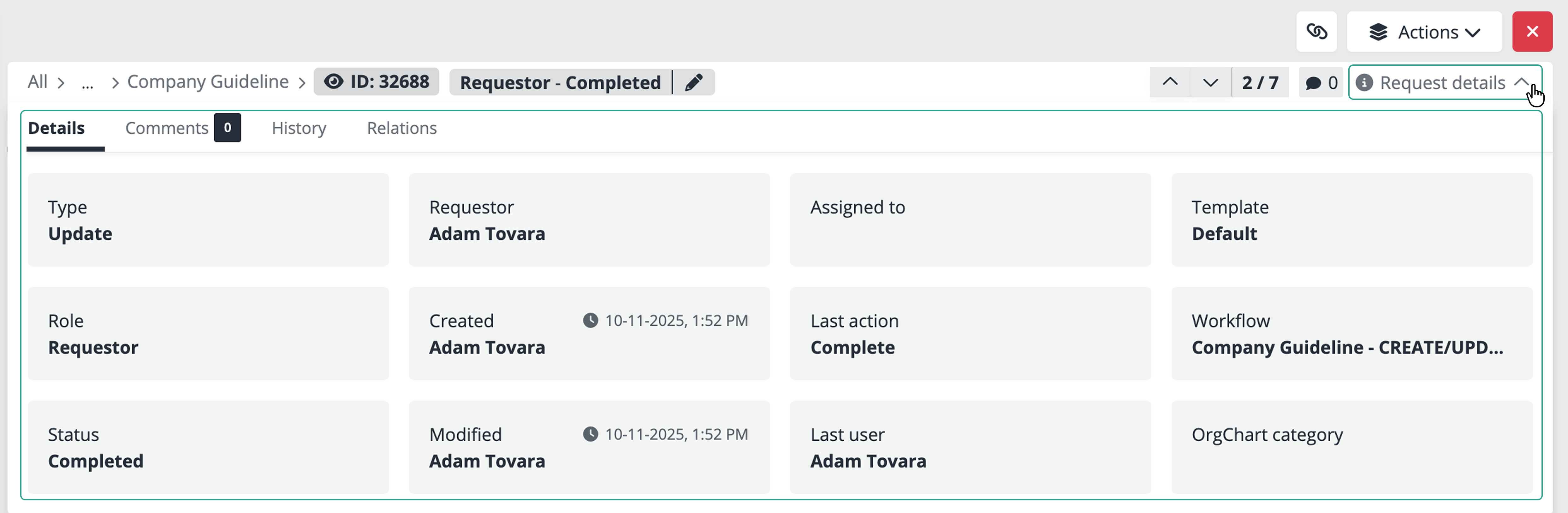
You cannot edit these values. They provide context and help you verify responsibilities and request metadata.
The Request details panel also includes additional tabs:
-
History - Shows changes made to the request during its lifecycle. The level of detail depends on administrator settings. You can see when changes occurred and who performed them. The history also stores request versions. Each update creates a new version, while earlier versions remain available. You can review previous states at any time.
-
Relations - Displays links to related requests or other objects. This tab helps you understand dependencies and whether the request connects to a broader process.