Bookmarks
Bookmarks let you save your most frequently used request grids or specific requests for quick access. Instead of repeatedly applying the same filters or searching for the same request, a single click takes you directly back to where you need to continue.
You can find Bookmarks in the left side menu. Each user creates and manages their own set of bookmarks based on their work, projects, or business processes.
This feature is especially useful if you regularly work with the same request grids, frequently return to specific requests, or want to keep important information readily available.
Creating bookmarks
Xeelo supports two types of bookmarks:
- Request grid – saves the current request grid, including all applied filters and display settings. When you open the bookmark, the grid is displayed exactly as it was when it was saved.
- Specific request – creates a direct link to a selected request, so you do not have to search for it again.
After you create them, both types of bookmarks appear in the Bookmarks section of the left side menu.
Tip
Save bookmarks for invoice grids awaiting approval or lists of high-priority requests. This saves you from repeatedly searching for them or applying the same filters.
Adding a request grid to bookmarks
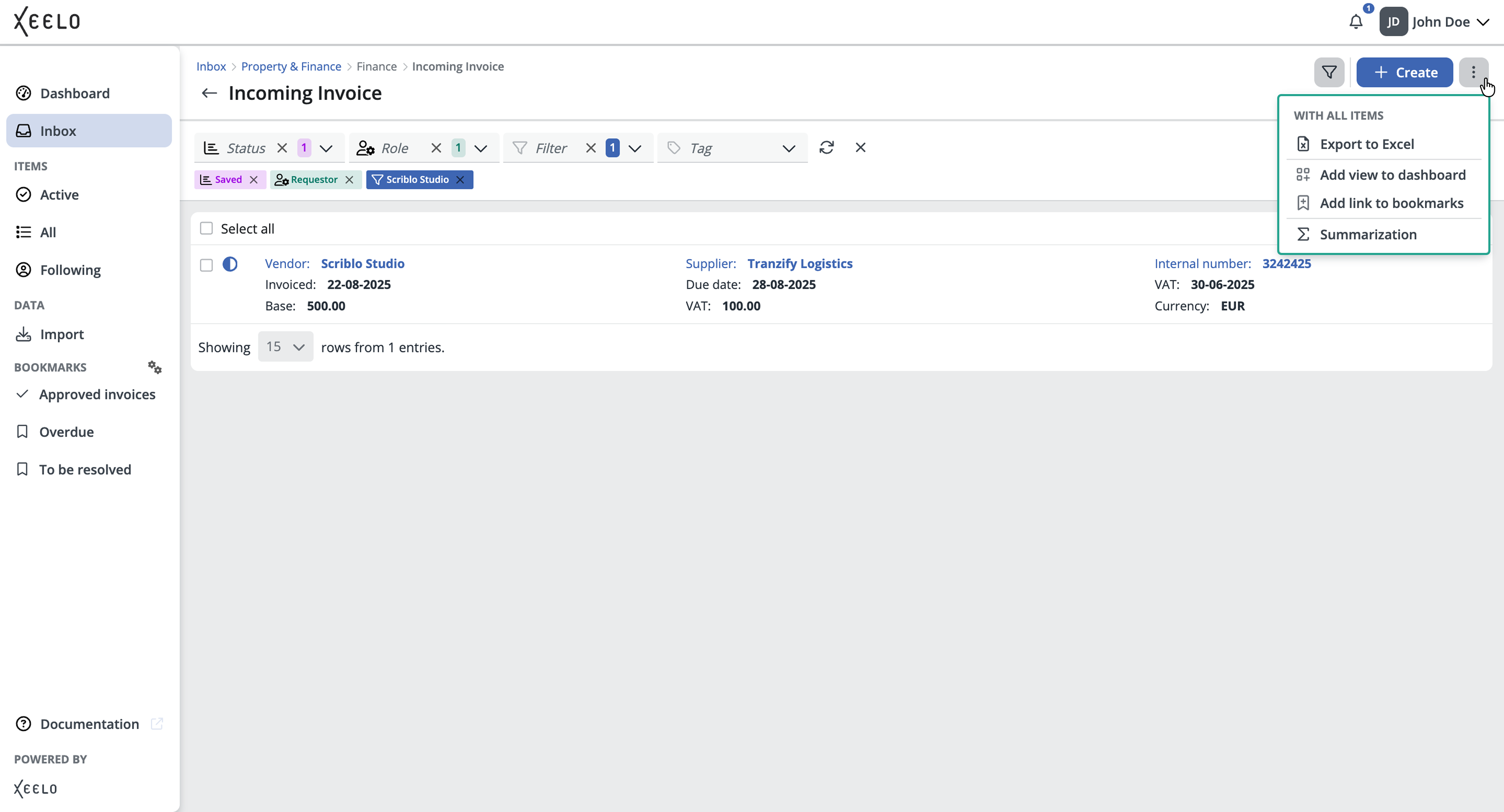
You can save the current request grid as a bookmark, including all applied filters and display settings. Configure the request grid to meet your needs by selecting the appropriate object and applying the required filters. When the grid displays exactly the information you want, click the three-dot menu in the upper-right corner and select Add link to bookmarks.
In the configuration dialog, configure:
- Name – the name displayed in the side menu.
- Icon – select an icon to help you easily identify the bookmark.
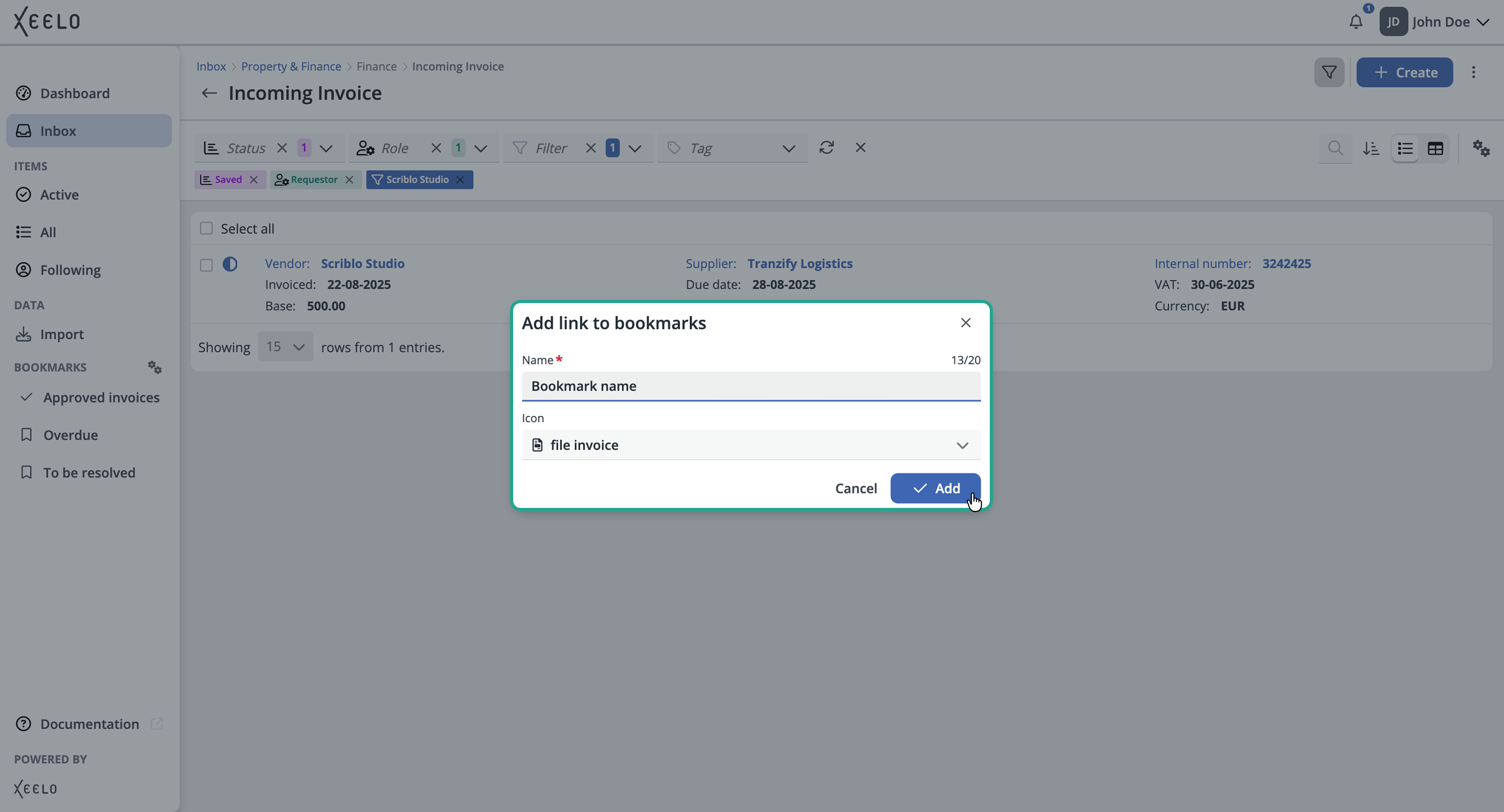
After you confirm the dialog, the new bookmark immediately appears in the Bookmarks section of the left side menu.
The bookmark stores the selected object together with all applied filters. When you open the bookmark, the grid is displayed using exactly the same configuration that was saved.
Changing the saved filter
If you change the filters after opening a bookmarked grid, Xeelo notifies you that you are no longer using the original configuration saved with the bookmark. Click Reset to restore the original saved filter at any time.
Adding a specific request to bookmarks
If you regularly return to a specific request, you can save it as a bookmark. This keeps it readily available and eliminates the need to search for it again in request grids.
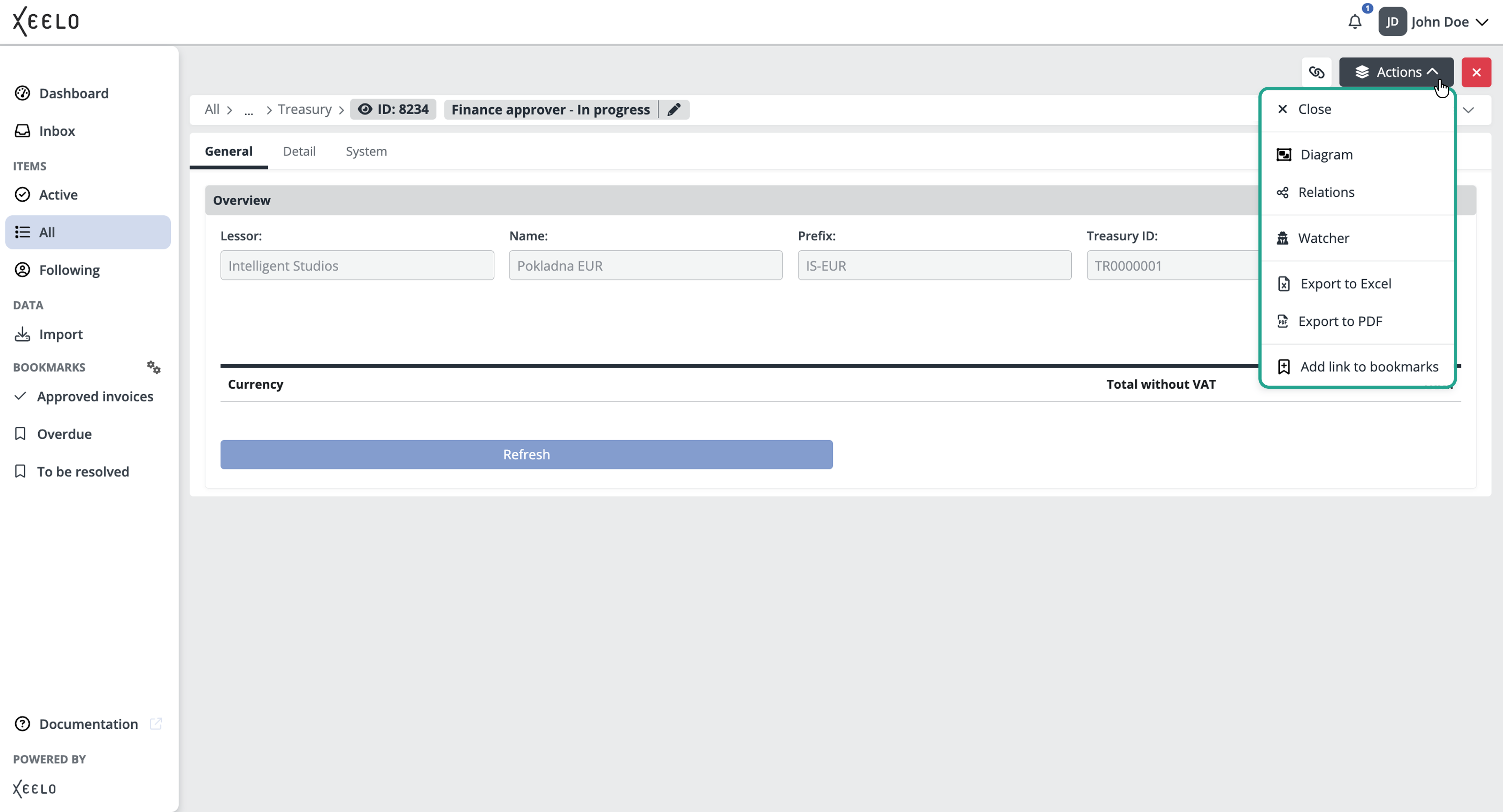
Open the request detail, click Actions, and then select Add link to bookmarks.
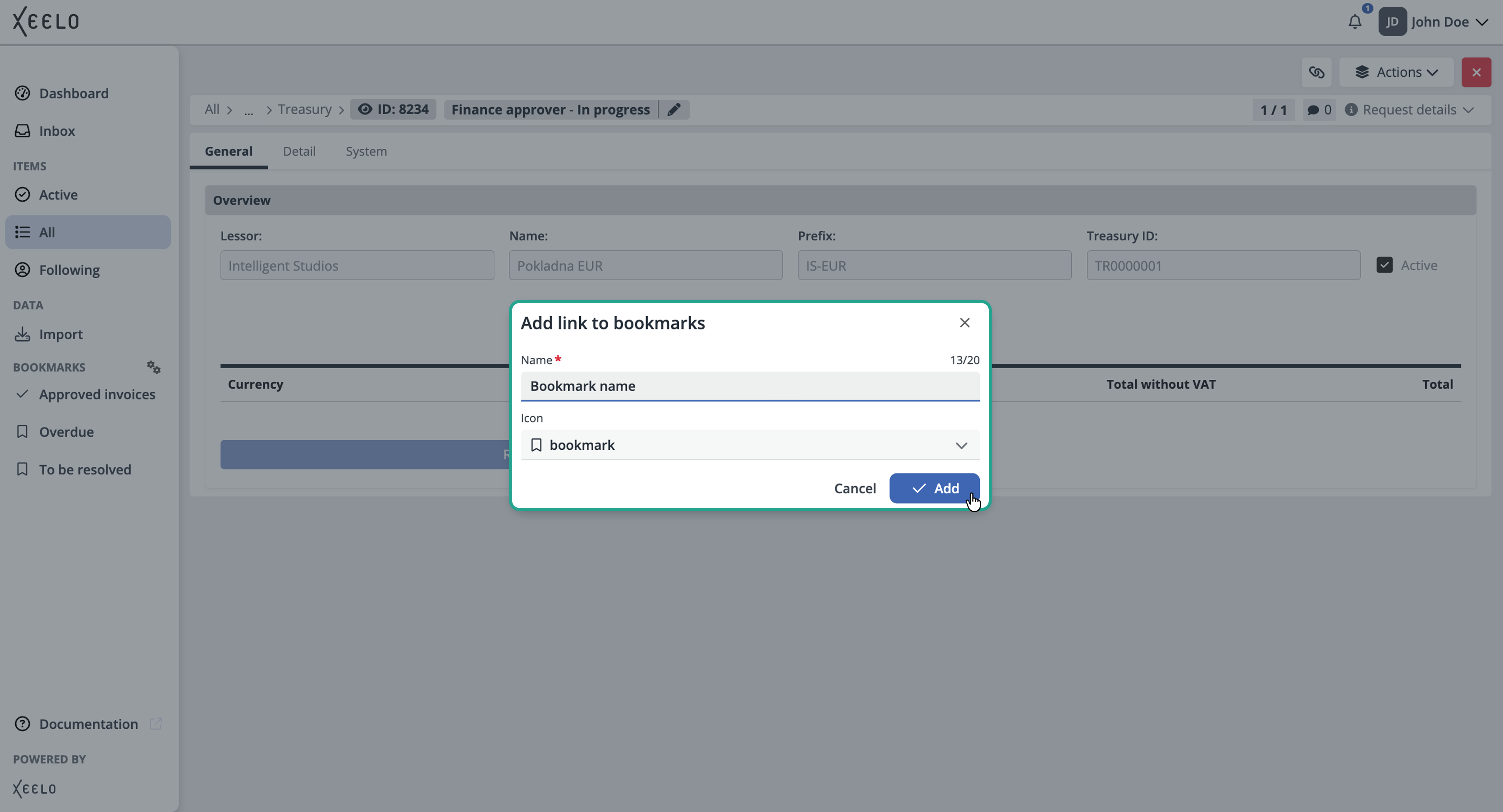
In the configuration dialog, configure:
- Name – the name displayed in the side menu.
- Icon – select an icon to help you easily identify the bookmark.
After you confirm the dialog, the bookmark immediately appears in the Bookmarks section of the left side menu.
Unlike a request grid bookmark, this type of bookmark always points to a single request. When you open it, the request detail opens directly without requiring you to browse request grids or search for the request.
Tip
Save bookmarks for requests that you work on over a longer period, review frequently, or revisit regularly during the approval process. With bookmarks, you can open them with a single click.
Managing bookmarks
After you create bookmarks, you can rename them, modify their settings, reorder them, or remove them at any time. This allows you to keep the side menu organized and focused on the links you use most often.
In the Bookmarks section, click the icon with the two gears. The Bookmark Configuration dialog opens and displays all your saved bookmarks.
After you select a bookmark, its settings appear in the right pane.
The available configuration options depend on the bookmark type.
Request grid
For a request grid bookmark, you can modify:
- Name – the name displayed in the side menu.
- Icon – the icon used to identify the bookmark.
- Module – choose whether the bookmark opens the Inbox, Active, Following, or All request grid.
- Object – select the object whose request grid the bookmark opens.
- Filters – modify the status, role, custom filter, or tag used to display requests.
- Display mode – choose whether the grid opens in Table or Grid view.
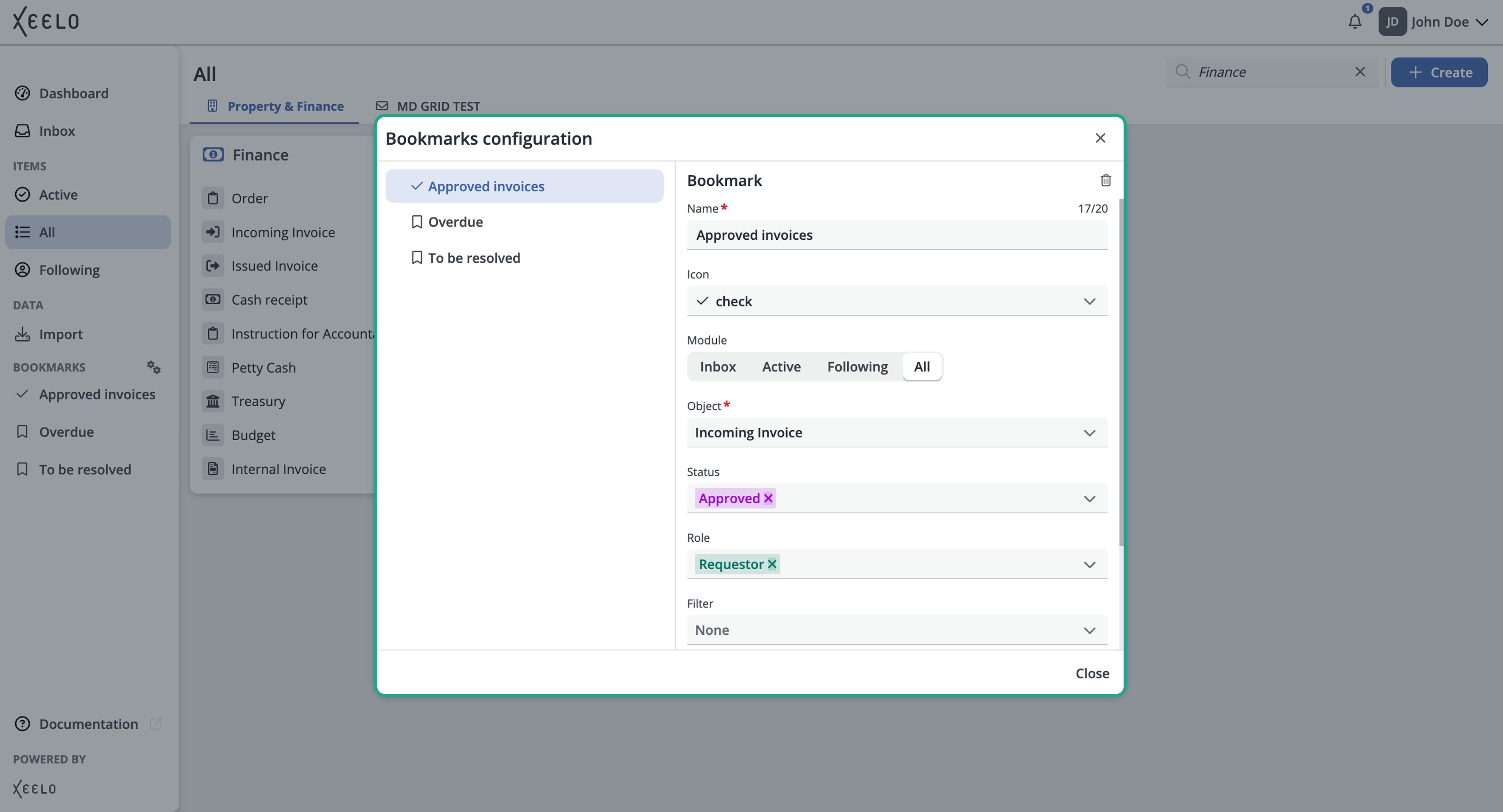
This allows you to update a saved request grid at any time without creating a new bookmark.
Specific request
For a specific request bookmark, you can modify:
- Name – the name displayed in the side menu.
- Icon – the icon used to identify the bookmark.
- Request ID – the identifier of the request that the bookmark opens.
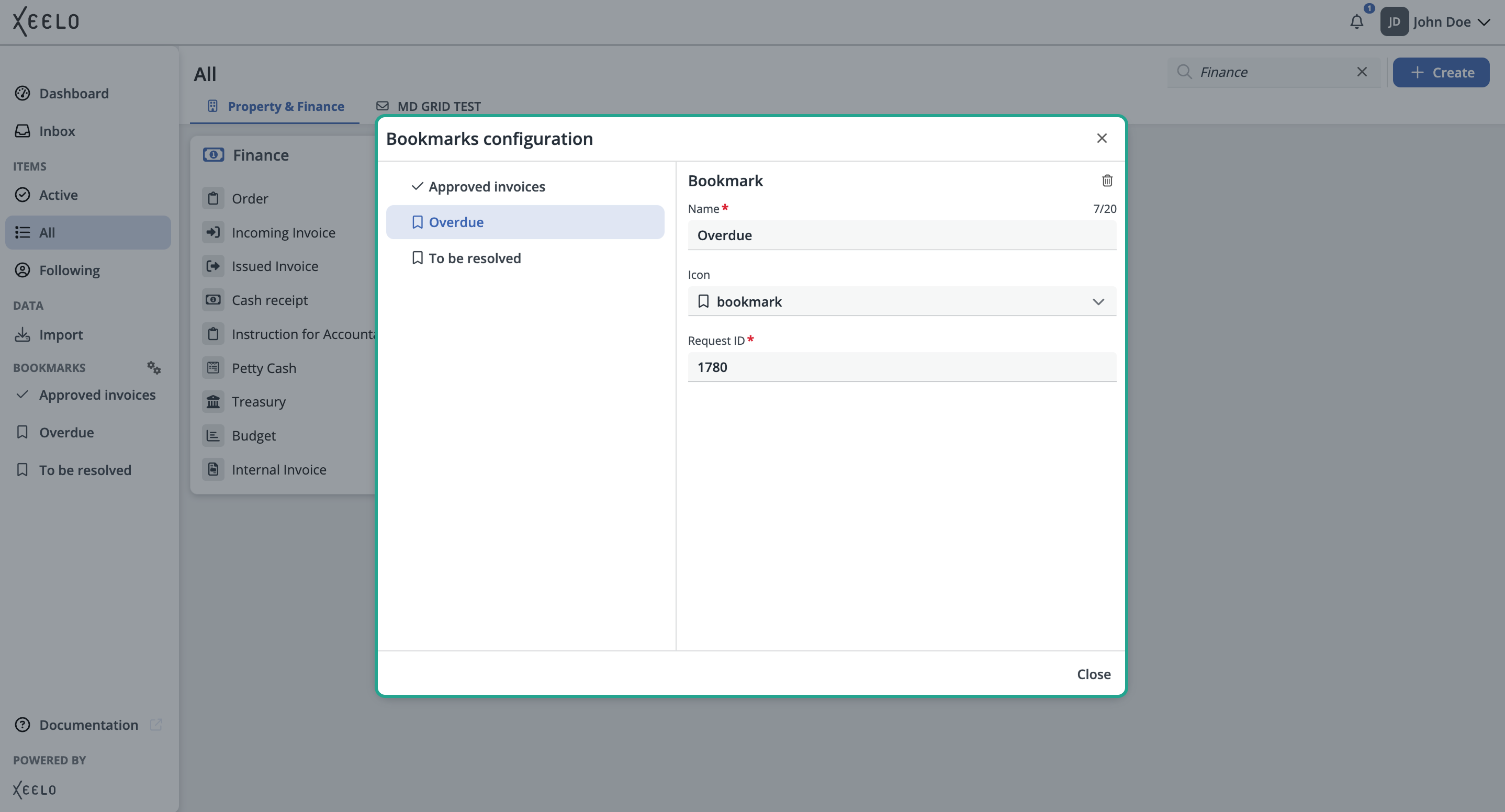
If you want the bookmark to point to a different request, you do not need to create a new bookmark. Simply change its request ID.
Unavailable bookmark
If you no longer have permission to access the saved request grid or request, or if it has been deleted, Xeelo marks the bookmark with a red exclamation mark. The bookmark cannot be opened until it has been updated or removed.
Reordering bookmarks
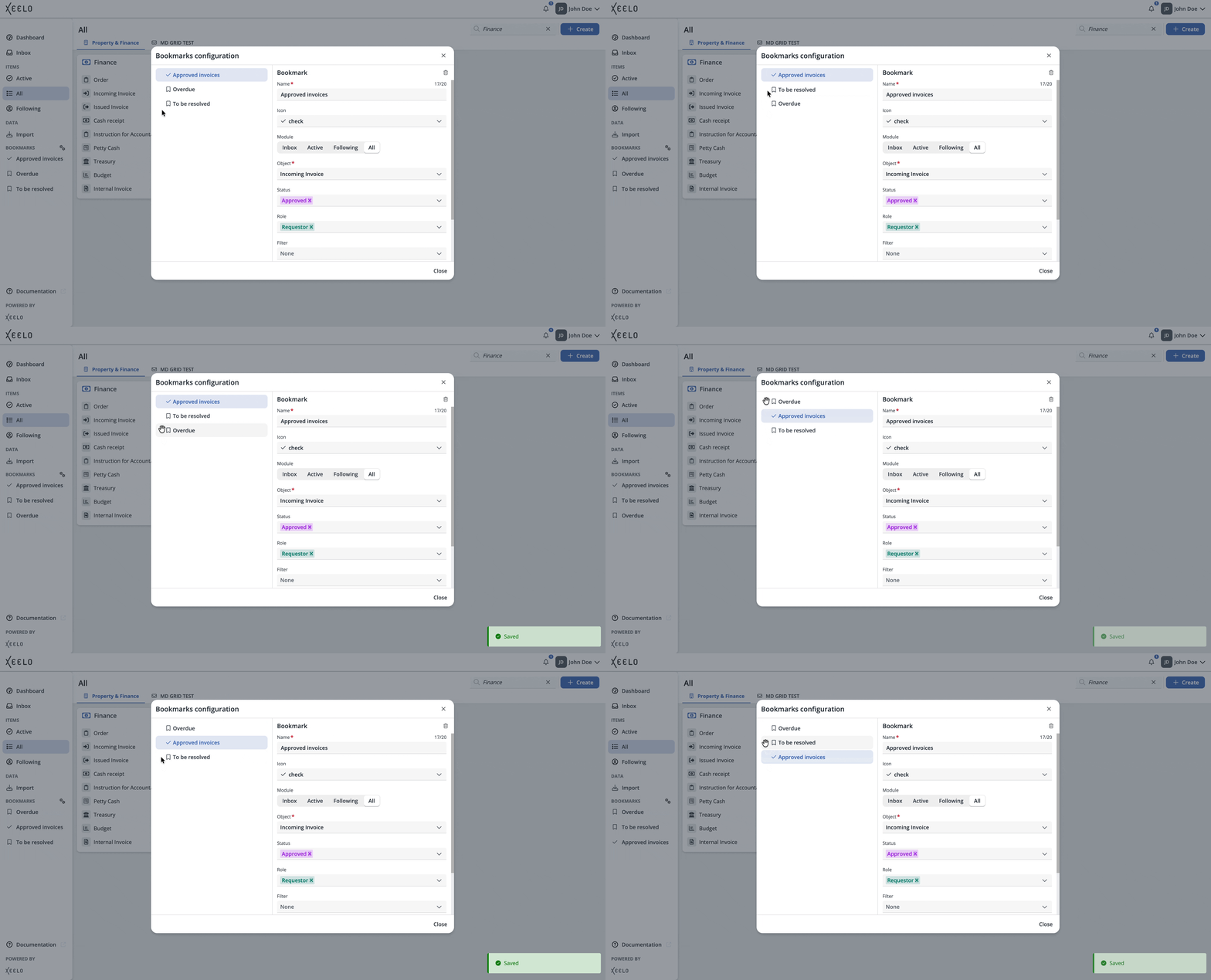
You can arrange bookmarks in any order that suits your workflow. In the Bookmark configuration dialog, move the pointer over a bookmark to display the drag handle. Drag the bookmark to the desired position. This allows you to keep your most frequently used bookmarks at the top of the list for quick access.
Removing bookmark
If you no longer need a bookmark, you can remove it at any time. Select the bookmark and click the Delete (trash) icon on the right side of the Bookmark configuration dialog. The bookmark is immediately removed from your list. Removing a bookmark does not delete the request or request grid itself. Only the saved shortcut is removed from your side menu.